Linux Text Processing.
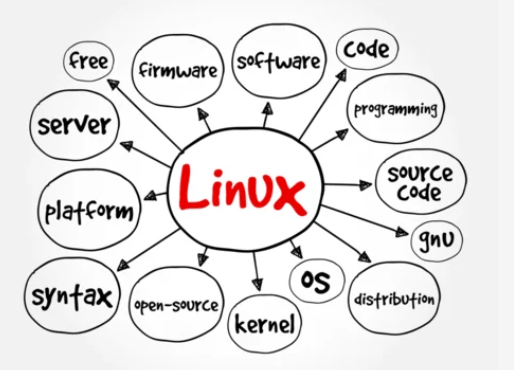
Linux text processing is one of the most powerful skills a DevOps engineer can master. The command line provides a rich set of utilities designed to read, manipulate, filter, and transform text directly within the terminal. Since almost everything in Linux is represented as text from configuration files to logs and system outputs understanding these tools is essential for automation and troubleshooting.
The most commonly used text processing commands include cat, grep, awk, sed, cut, sort, uniq, tr, and wc. Each of these tools serves a specific purpose, and when combined through pipelines, they become incredibly effective. For example, cat displays file contents, while grep searches for patterns using regular expressions. awk can extract and format specific columns from structured text like CSV or log files. sed is a stream editor capable of performing substitutions, deletions, and insertions on the fly. cut allows you to isolate particular fields based on delimiters. Sorting and removing duplicates are handled by sort and uniq, respectively. When you need to count lines, words, or characters, wc becomes invaluable.
Another hidden gem is tr, used to translate or delete specific characters. In DevOps environments, these commands are used extensively for log analysis, data filtering, and report generation. Imagine parsing a multi-gigabyte application log to extract only error messages that occurred today this can be done efficiently with grep and awk without opening the file in an editor. You could also use sed to automatically correct configuration syntax errors or update values across multiple files.
In CI/CD pipelines, text processing commands are often used to extract build metadata, format deployment outputs, and clean up logs before archiving. Combining tools with pipes (|) allows you to build powerful one-liners that transform raw data into readable summaries. For example, ps aux | grep nginx | awk '{print $2}' quickly lists all process IDs for Nginx. Similarly, df -h | grep /dev | sort -k5 -r sorts your mounted drives by disk usage. These examples highlight the flexibility of Linux text processing it’s about transforming chaos into clarity. By mastering these commands, you can automate repetitive tasks, enhance your monitoring workflows, and gain faster insights from system data.
Text processing is more than just command-line manipulation; it’s a mindset that turns raw information into actionable knowledge. Whether you’re troubleshooting a production server or analyzing logs from hundreds of containers, Linux text tools remain the backbone of efficient DevOps engineering.
cat: Display the contents of/etc/passwd.more: View the contents of/etc/passwdpage by page.less: Open/etc/passwdwithlessand practice scrolling.



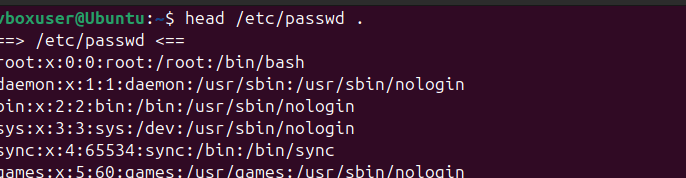
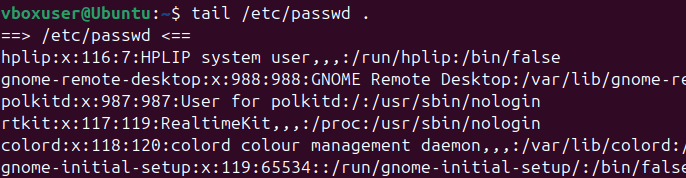
head: Display the first 5 lines of/etc/passwd.tail: Display the last 5 lines of/etc/passwd.grep: Search for your username in/etc/passwd.awk: Print the first column of/etc/passwd.


System Information.
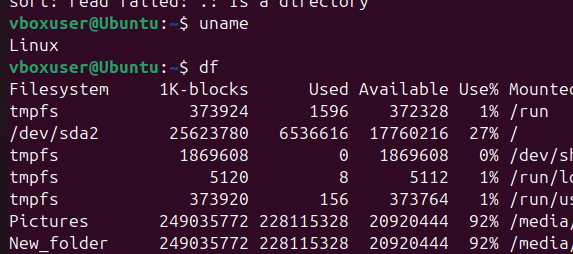
In the world of DevOps, understanding the system you are working with is crucial, and Linux offers a wide range of commands to retrieve system information efficiently. Whether you are managing servers, deploying applications, or monitoring performance, having the right knowledge of system information commands can save time and prevent errors. The foundation starts with the uname command, which displays kernel name, version, and architecture. When used with the -a flag, it gives a complete overview of the system.
To check hardware details, commands like lscpu and lsblk provide CPU and block device information, respectively. lscpu outlines the processor architecture, cores, and threads, while lsblk lists disks and partitions in a clear tree format. The df -h command displays disk space usage in a human-readable format, and du -sh reports the size of directories. For memory and swap usage, free -h is a simple yet powerful tool. The top and htop commands give a real-time view of system performance, showing CPU and memory consumption per process.
To examine hardware at a deeper level, lshw and inxi can be used to generate detailed reports about the system’s components. Network-related information can be retrieved using ifconfig or the modern ip addr command, which lists all network interfaces and their IP addresses. To check active network connections and listening ports, netstat -tuln or ss -tuln are commonly used.
The uptime command provides how long the system has been running and the average load over time. To identify the distribution, lsb_release -a or checking /etc/os-release can reveal the OS name and version. When diagnosing performance issues, tools like vmstat, iostat, and sar help analyze CPU, memory, and I/O statistics in real time. System logs located in /var/log/ also contain essential details for debugging and auditing.
Combining these commands in scripts allows DevOps engineers to automate system audits, health checks, and environment verification. For example, a simple Bash script can gather CPU, memory, disk, and network information and store it as a report for documentation or monitoring purposes. Understanding system information commands is not just about knowing what to run; it’s about interpreting the data and using it to make informed operational decisions.
In containerized or cloud environments, these tools remain vital for troubleshooting host systems and virtual instances. Ultimately, mastering Linux system information commands gives DevOps engineers visibility, control, and confidence in managing complex infrastructures efficiently.
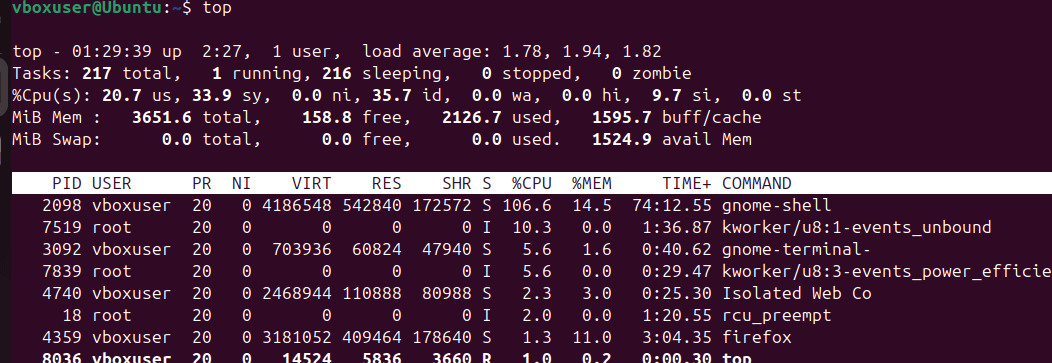
uname: Display your system’s kernel name and version.df: Check the disk space usage of your system in a human-readable format.du: Find the size of the/var/logdirectory.top: Open thetopcommand and observe the running processes.


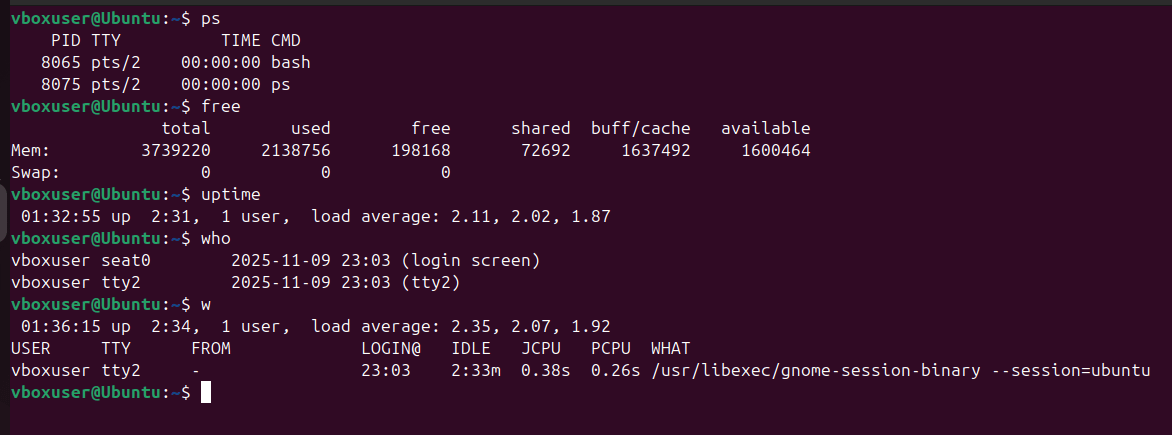
ps: List all running processes on your system.free: Check the memory usage of your system.uptime: Find out how long your system has been running.who: Display the list of users currently logged in.w: Check what the logged-in users are doing.

Conclusion.
Mastering Linux text processing tools such as grep, sed, awk, and their supporting commands like cut, sort, uniq, and tr empowers DevOps engineers to efficiently handle logs, configuration files, and data streams directly from the command line. These tools form the foundation of automation and data analysis in Unix-based environments, allowing complex transformations and insights without relying on external software.
By understanding how to combine these utilities through pipes and shell scripting, DevOps professionals can build powerful, lightweight workflows that enhance productivity, improve monitoring, and streamline CI/CD pipelines. In essence, proficiency in text processing is not just a Linux skill it’s a core competency for modern DevOps excellence.