
Introduction.
Setting up AWS Budgets and alerts for cost management is an essential practice for organizations seeking to maintain financial control, enhance visibility into cloud spending, and prevent unexpected cost overruns that can impact long-term planning and operational efficiency.
By configuring AWS Budgets, teams gain the ability to define custom spending thresholds, monitor usage patterns, and establish financial guardrails that align with organizational goals.
This ensures that as resources scale in response to business demands, costs remain predictable and transparent.
AWS Budgets provide a flexible framework that supports various budget types, including cost, usage, reserved instance coverage, and savings plans utilization, allowing teams to fine-tune their cost-management approach.
In addition to budgeting, setting up alerts plays a crucial role in proactive financial governance, empowering stakeholders to receive timely notifications whenever spending approaches or exceeds predefined limits.
These alerts can be delivered via email or integrated with Amazon Simple Notification Service, enabling automated workflows and responsive actions that mitigate overspending.
Implementing budgets and alerts not only enhances operational discipline but also encourages a culture of cost awareness across teams.
This becomes especially important in dynamic development environments where resources are frequently deployed, scaled, or modified.
Through real-time monitoring, teams can quickly identify unusual spikes, optimize resource allocation, and refine architectural decisions to improve cost efficiency.
Moreover, establishing clear financial boundaries supports better forecasting and strategic planning as organizations grow.
By leveraging AWS Budgets and its alerting capabilities, businesses can enforce responsible cloud usage without compromising performance or innovation.
The process is straightforward yet powerful, allowing even small teams to adopt enterprise-level cost governance practices.
As cloud environments become more complex with multiple services running in parallel, the importance of granular cost management increases significantly.
AWS Budgets helps simplify this complexity by centralizing financial oversight and offering detailed insights into spending behaviors.
Such insights empower decision-makers to adjust budgets, explore cost-saving opportunities, and evaluate the return on investment for different projects.
In development environments, where experimentation is frequent and resource usage can fluctuate unpredictably, these tools become invaluable for preventing budget drift.
The alerts act as early warning signals that prompt corrective action long before a cost anomaly becomes a serious issue.
Ultimately, setting up AWS Budgets and alerts lays the foundation for a disciplined, cost-aware cloud strategy that scales with organizational needs.
It fosters accountability, supports continuous improvement, and ensures that financial goals remain aligned with technical objectives.
By adopting these practices early in the development lifecycle, teams can safeguard their cloud investments and achieve sustainable cost management as their infrastructure evolves.

Lab Steps
Step 1: Sign to the AWS Management Console
1. Click on the Open Console button, and you will get redirected to AWS Console in a new browser tab.
2. Copy your User Name and Password in the Lab Console to the IAM Username and Password in the AWS Console and click on the Sign in button.
Step 2: Opening the Billing and Cost Management Dashboard
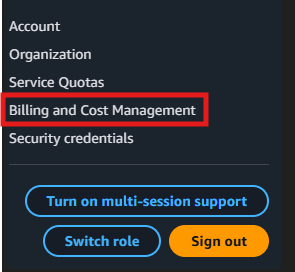
- Navigate to the Billing Dashboard by clicking your account name in the top-right corner and choosing Billing and Cost Management from the menu.
- After logging in, make sure your default AWS region is set to US East (N. Virginia).
Step 3: Creating a New Budget
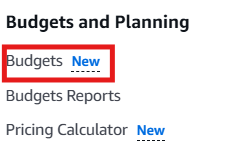
- On the Billing and Cost Management page, click Budgets under Budgets and Planning on the left side panel.
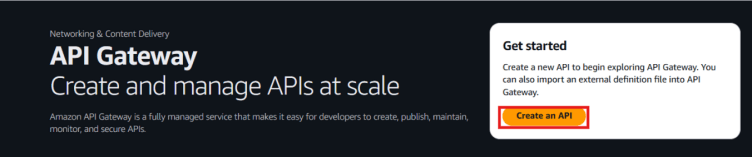
2. Click the Create a budget button to start setting up your new budget.
Step 4: Configuring the Budget Details
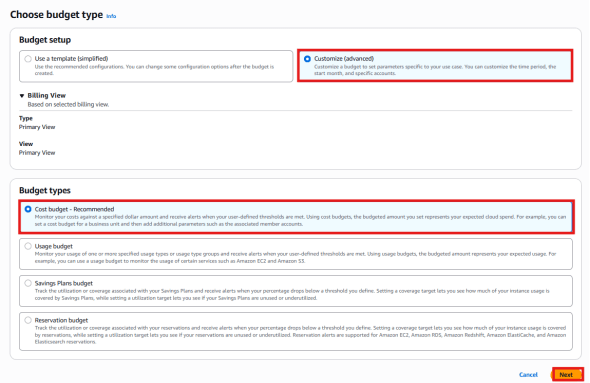
- Choose the budget setup option Customize (advanced) and select the budget type Cost budget – Recommended, then click Next.
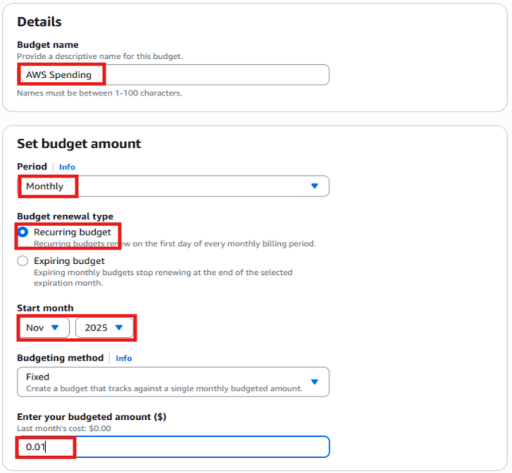
- Under the details section, type a name for your budget (for example, AWS Monthly Spending).
- In the Set budget amount, enter how much you want your budget limit to be. The budget period should be set to monthly.
- Under Budget Renewal Type, select Recurring budget.
Recurring budget: Automatically renews at the start of every monthly billing period.
Expiring budget: Ends after the selected time frame and does not renew automatically.
- Set the start month as your current month.
- Leave the budgeting method as default (Fixed).
- Enter your budget amount ($): 0.01
Note:
When you type your budget amount, you may see the previous month’s cost displayed.
To check your budget status, you can enter a smaller value.
In this case, since it shows $0.05, set it to $0.01 so you can get a notification email from the budget service.
- In the Budget Scope section, click on “All AWS Services (Recommended)”.
FYI: If you want to track spending for a specific service, you can choose Filter specific AWS cost dimensions and then pick the service (for example, EC2) you want to include in your budget.
If you choose All AWS Services (Recommended), AWS will track all the costs for your entire account, no matter which service they come from.
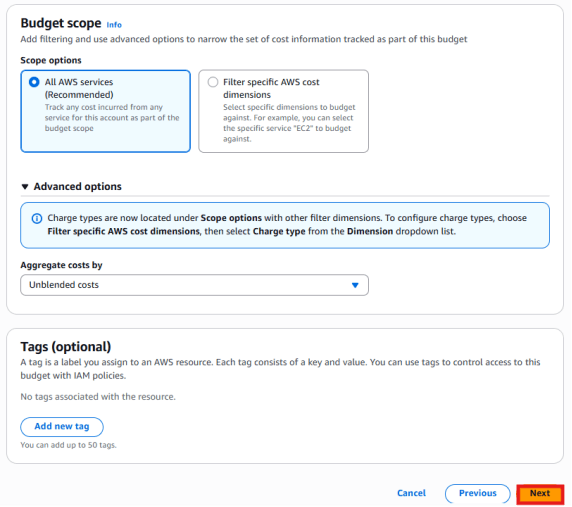
9. Under Advanced options, select Unblended costs under Aggregate costs by.
10. Click on the Next button.
Step 5: Set Up Alerts
1. Set up notifications so you’ll be informed when your spending goes beyond a set limit.
2. Click on Add an alert threshold.
3. In the Alert section, set the limit to 50 percent, and choose to get an alert when the actual amount reaches that level.
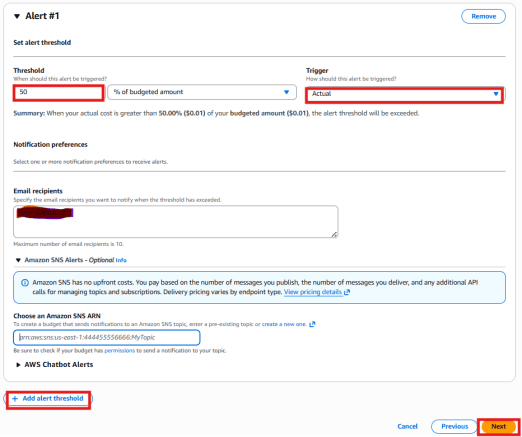
4. In the Email recipients box, enter a valid email address so the receiver will be notified when the spending crosses the limit.
5. There are three ways to receive notifications: Email, SNS Alerts, and AWS Chatbot Alerts.
Let’s pick Email and SNS to send the notifications.
6. To add Alert #2 again, click on the Add alert threshold button. Set the alert threshold to 80 percentage and trigger should be actual.
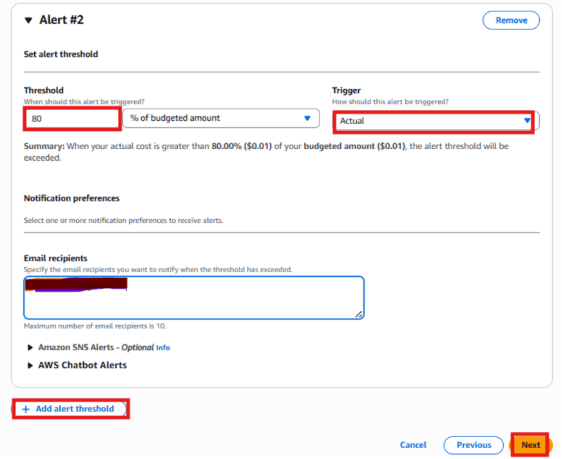
7. To create Alert #3 again, click on the Add alert threshold button to choose the alert limit based on the expected spending.
Note:
The budget plan or forecast helps you estimate your monthly AWS expenses. It allows you to keep track of and control your AWS costs. If your real spending starts getting close to or goes over your planned budget, AWS Budgets will send you a warning. This helps you take action early to prevent unexpected extra charges.
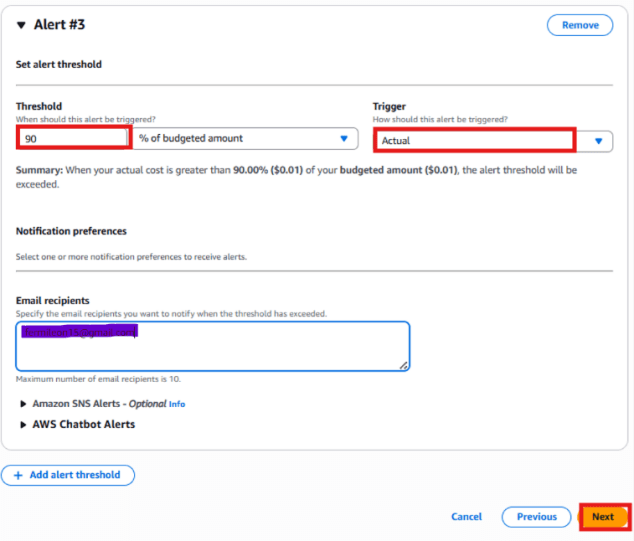
8. Now we are going to create an Amazon SNS service to receive notifications for your budget.
In this step, we will use SNS (Simple Notification Service) to send alerts when the budget limit is reached.
- Click on Create a new one — this will open the Amazon SNS service in a new tab.
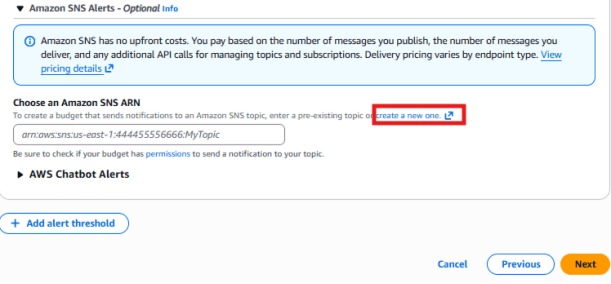
Step 6: Creating SNS Topic
1.In the SNS page, click on Create topic.

2. Under Details:
* Type: Select Standard
* Name: Enter mysnstopic
* Display name: Enter mysnsnotification.
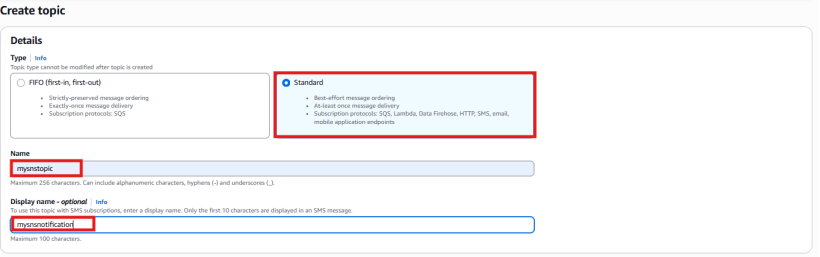
3. Leave all other options as default, and then click on the Create topic button.
4.Your SNS topic will now be created successfully.
A confirmation message will appear showing that the topic was created.You can now create subscriptions and send messages to this topic.
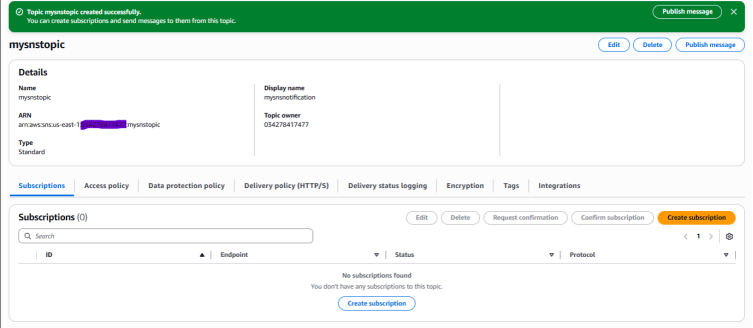
Step 7: Join the topic subscription
1. After the SNS topic has been made, open your topic.
2. Go down and choose the Create subscription option under the Subscriptions section.
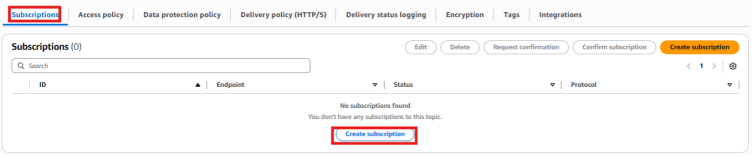
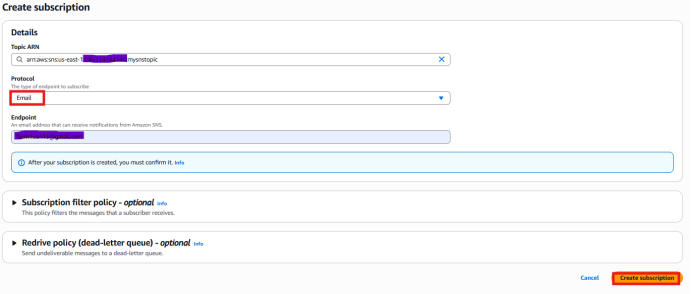
3. In the details area:
Protocol: Choose Email
Endpoint: Type your Email ID
Note: Enter a correct email address so you can get the SNS message at that mail.
4.Press the Create subscription button to finish.
5. You’ll get an email from SNS in your mail. If you don’t see it in your inbox, look in the spam or junk folder.
6. Press the Confirm subscription link in the email.

7. After that, your email will be connected to the SNS topic.
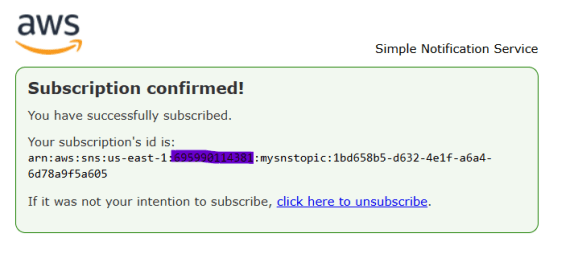
8. You can remove or unsubscribe from the topic whenever you want.
9. Open your SNS dashboard, select Topics from the left menu, and copy the ARN (Amazon Resource Name) to use later.

10.Now click on the snstopic and click on the Edit button.

11.Click on Access Policy (optional).We are going to insert the policy shown below.
12.On line 27, add a comma, then copy and paste this policy. The Topic ARN with double quotation you copied in Step 9.
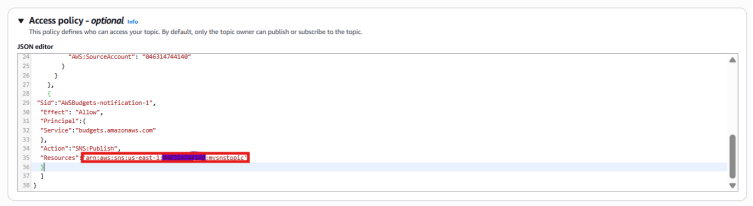
13. After you finish, press Save changes.
14. Go back to the Budget page you made.
15. Take the SNS Topic ARN from the SNS page and put it in the SNS Alert box, then press Next.
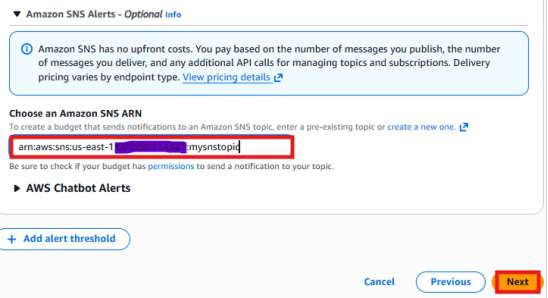
16. Keep all action settings as they are and press Next.
FYI:
Budget actions let you set automatic steps to control costs.
You can create automatic actions (like stopping EC2) when your budget limit is crossed.
17. Check all your settings and press Create budget.

Note :
This step just shows an example of how your budget screen will look. If you can’t see the budget details right now, don’t worry the lab is still working fine.
18. Open the budget you created to view the budget information.
- Current vs. Budgeted:
Shows how much you’ve spent so far compared to what you planned to spend by now. It helps you check if you’re staying within your budget.
- Forecasted vs. Budgeted (MTD):
Shows what you’re likely to spend for the whole month compared to your planned monthly budget. It helps you see early if you might go over your budget.

19. When the threshold is crossed, you’ll receive email alerts.
Conclusion :
1. You have successfully built your AWS Budget.
2. You have successfully adjusted all budget configurations.
3. You have successfully added alert notifications for your budget.
4. You have successfully created an SNS topic for alerts.
5. You have successfully joined the SNS topic as a subscriber.
6. You have successfully finished and verified the lab tasks.
AWS Budgets and Alerts help you monitor spending, stay within your cost limits, and get early warnings when usage increases, making development safe, controlled, and cost-efficient.