
Introduction
Kubernetes Ingress with AWS Application Load Balancer (ALB) on Amazon EKS allows you to manage external access to your Kubernetes services using HTTP/HTTPS. By deploying the AWS Load Balancer Controller in your EKS cluster, Kubernetes Ingress resources automatically create and configure an ALB. This setup helps route traffic to different services based on paths or hostnames, improves scalability, and provides secure, efficient load balancing for applications running on EKS.
Lab Steps
Step 1: Sign to the AWS Management Console
1. Click on the Open Console button, and you will get redirected to AWS Console in a new browser tab.
2. Copy your User Name and Password in the Lab Console to the IAM Username and Password in the AWS Console and click on the Sign in button.
Step 2: Set Up an Environment in CloudShell
1. Ensure that you are working in the N. Virginia Region.
2. Select the CloudShell icon located on the upper-right side of the AWS console.

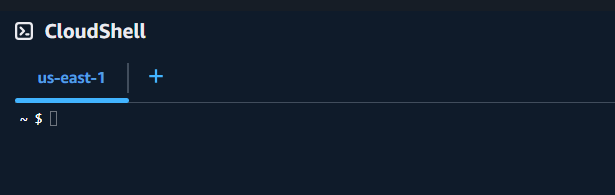
3. A new browser tab will open. Wait a few moments for the environment to finish setting up. Once the setup is complete, the terminal will be ready for use.
Step 3: Install AWS CLI, eksctl, and kubectl
1. Use the following command to install the AWS CLI via yum:
sudo yum install awscli -y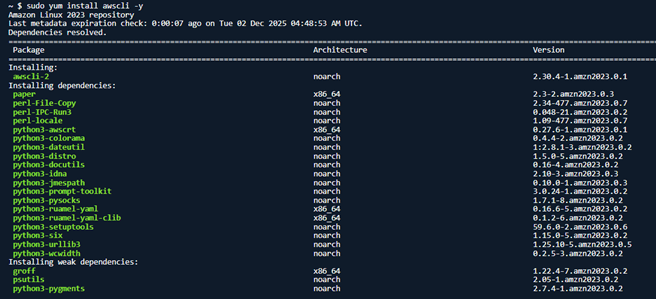
2. Verify the installation by checking the AWS CLI version:
aws --version3. Install eksctl by running the two commands given below in your shell:
curl --silent --location "https://github.com/weaveworks/eksctl/releases/latest/download/eksctl_$(uname -s)_amd64.tar.gz" | tar xz -C /tmpsudo mv /tmp/eksctl /usr/local/bin4. Confirm eksctl installation by viewing its version:
eksctl version
5. Once CloudShell is set up, download the Amazon EKS–provided kubectl binary that matches your cluster’s Kubernetes version using the command below:
curl -o kubectl https://amazon-eks.s3-us-west-2.amazonaws.com/1.18.9/2020-11-02/bin/linux/amd64/kubectl
6. Grant execute permissions to the downloaded kubectl binary:
chmod +x ./kubectl7. Move the kubectl binary to a directory included in your PATH. If kubectl is already installed, it’s recommended to place the new binary in $HOME/bin/kubectl and ensure $HOME/bin has priority in your PATH.
mkdir -p $HOME/bin && cp ./kubectl $HOME/bin/kubectl && export PATH=$PATH:$HOME/bin8. After installing kubectl, validate the setup by checking its version:
kubectl version --short --client
Step 4: Create an EKS Cluster
1. Use eksctl to provision your EKS Cluster by executing the command below:
eksctl create cluster --version=1.32 --name=eksspottutorial --nodes=2 --managed --region=us-east-1 --zones us-east-1a,us-east-1b,us-east-1c --node-type t2.medium --asg-access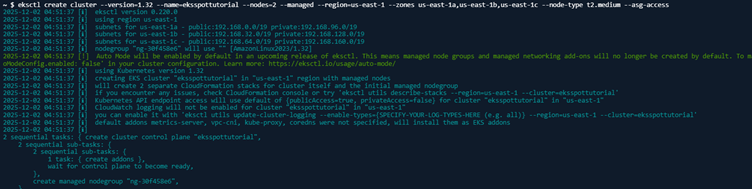
2. Refresh your kubeconfig file by running the following command:
aws eks --region us-east-1 update-kubeconfig --name eksspottutorial
3. Install the Helm package manager using this command:
curl https://raw.githubusercontent.com/helm/helm/master/scripts/get-helm-3 | bash
4. Add the AWS Load Balancer Controller Helm repository with the command provided:
helm repo add eks https://aws.github.io/eks-charts
helm repo update
5. Deploy the Ingress Controller using the following installation command:
kubectl apply -f https://raw.githubusercontent.com/kubernetes/ingress-nginx/main/deploy/static/provider/cloud/deploy.yaml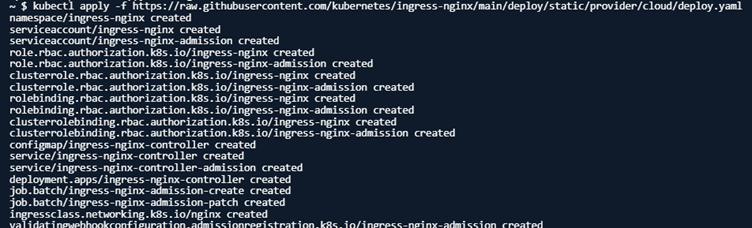
6. Enable the IAM OIDC provider for your cluster by running this command:
eksctl utils associate-iam-oidc-provider --region us-east-1 --cluster eksspottutorial --approve
7. Create the IAM policy required for the Load Balancer Controller:
curl -Lo iam-policy.json https://raw.githubusercontent.com/kubernetes-sigs/aws-load-balancer-controller/main/docs/install/iam_policy.json
aws iam create-policy --policy-name ALBIngressControllerIAMPolicy --policy-document file://iam-policy.json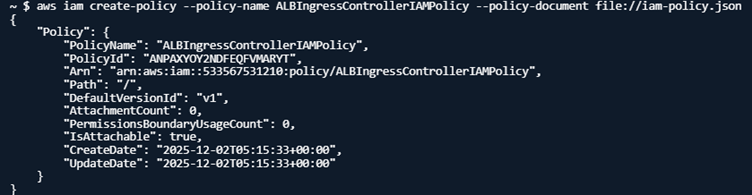
8. Use the command below to retrieve your AWS Account ID:
aws sts get-caller-identity
9. Create the service account associated with the IAM policy. Replace your AWS account id with the value obtained in the previous step:
eksctl create iamserviceaccount \
 --cluster eksspottutorial \
 --namespace kube-system \
 --name aws-load-balancer-controller \
 --attach-policy-arn arn:aws:iam:::policy/ALBIngressControllerIAMPolicy \
 --override-existing-serviceaccounts \
 --approve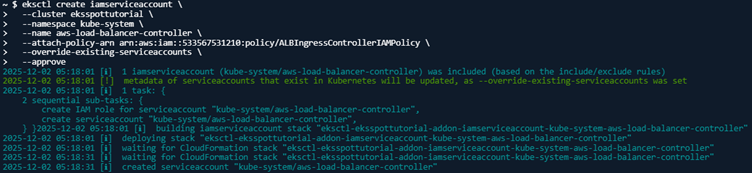
10. Install the AWS Load Balancer Controller using the following command:
helm install aws-load-balancer-controller eks/aws-load-balancer-controller \
 --set clusterName=eksspottutorial \
 --set serviceAccount.create=false \
 --set serviceAccount.name=aws-load-balancer-controller \
 --namespace kube-system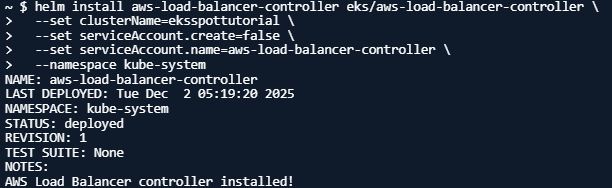
Task 5: Deploy a Sample Application
1. Create a Kubernetes deployment for a simple app. You can use nginx as an example.
nano nginx-deployment.yaml2. After entering the content shown below into the file, save it by pressing Ctrl + X, then Y, followed by Enter.
apiVersion: apps/v1
 kind: Deployment
 metadata:
  name: nginx
 spec:
  replicas: 2
  selector:
   matchLabels:
    app: nginx
 template:
  metadata:
   labels: app: nginx spec: containers: - name: nginx image: nginx:latest ports: - containerPort: 80
3. Deploy the nginx application to your cluster using the deployment file.
kubectl apply -f nginx-deployment.yaml
4. Set up a Service to make the application available within the cluster network.
nano nginx-service.yaml5. Once you add the content below into the file, save it by using Ctrl + X, confirm with Y, and press Enter.
apiVersion: v1
 kind: Service
 metadata:
  name: nginx
 spec:
  selector:
   app: nginx
 ports:
 - protocol: TCP
   port: 80
 targetPort: 80
 type: ClusterIP
6. Run the following command next:
kubectl apply -f nginx-service.yaml
Step 6: Set Up Ingress for ALB
1. Create an Ingress resource for your application.
nano nginx-ingress.yaml2. After inserting the content below into the file, save it by pressing Ctrl + X, then Y, and finally Enter.
apiVersion: networking.k8s.io/v1
kind: Ingress
metadata:
 name: nginx-ingress
 annotations:
  kubernetes.io/ingress.class: alb
  alb.ingress.kubernetes.io/scheme: internet-facing
spec:
 rules:
 - http:
   paths: - path: /
 pathType: Prefix
 backend:
  service:
   name: nginx
   port:
    number: 80
3. Execute the following command:
kubectl apply -f nginx-ingress.yaml
4. Verify the Service to obtain the External IP address:
kubectl get svc -n ingress-nginx

Conclusion
-
- You have successfully created an EKS cluster using eksctl.
-
- You have successfully installed the AWS Load Balancer Controller with required IAM roles.
-
- You have successfully deployed a sample app and exposed it using a ClusterIP service.
-
- You have successfully configured Ingress with an ALB for external access.
-
- You have successfully verified the ALB and confirmed the app is reachable.
“Refer to Jeevi’s page for more information on kubernetes”.