
Introduction.
Docker has quickly become one of the most essential tools in modern software development, and whether you’re a developer, a system administrator, or someone exploring DevOps, you’ve probably heard about how it simplifies packaging and deploying applications. For many beginners, though, the idea of containers, images, and isolated environments can feel unfamiliar, but the good news is that Docker becomes much easier to understand once you learn its core commands.
These basic commands form the foundation of everything you’ll do with containers from downloading an image, to running a container, to stopping it, to removing it when you’re done and each of these actions begins with a simple instruction in the Docker CLI. Knowing even a few of these commands can dramatically boost your confidence because Docker is designed to make complex tasks feel simple.
You can run complete applications with a single command, isolate software without heavy virtual machines, share environments across teams effortlessly, and replicate setups consistently on any system. This guide introduces the most common Docker commands you’ll use every day, breaking them down in clear, beginner-friendly language with straightforward explanations and real examples you can follow on your own machine. No assumptions or advanced background are required just simple steps that lead you from pulling images, running containers, and listing active processes, to viewing logs, cleaning unused resources, and understanding Docker’s container lifecycle.
You’ll also learn how Docker’s naming and tagging system works, and you’ll finally understand the difference between images and containers a concept that often confuses newcomers. This introduction is your starting point and your foundation for everything Docker offers, and once you master these essential commands, more advanced topics like Dockerfiles, networks, volumes, and multi-container setups with Docker Compose will feel much more approachable. Don’t worry if Docker seems overwhelming at first; every expert began with these same fundamentals, and now it’s your turn to take the first step into the world of containerized development.
General Info
docker --version          # Show Docker version
docker info               # Display system-wide information
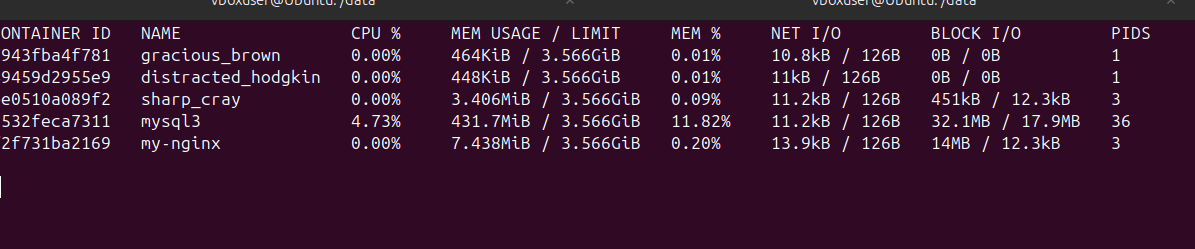
docker stats              # Live container resource usage

🔹 Working with Images.
docker pull <image_name>:<tag>      # Pull specific version (default: latest)
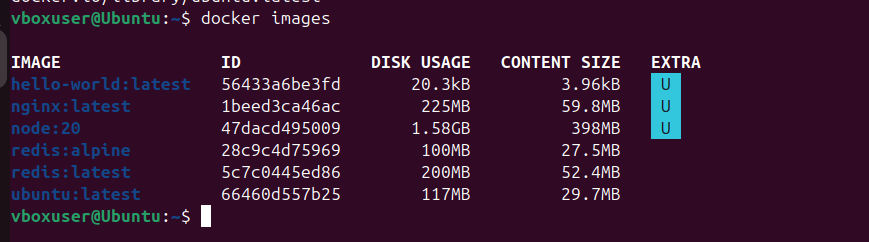
docker images                       # List all images
docker rmi <image_id|image_name>    # Remove image
docker image history <image_name>   # Show image layer history



🔹 Working with Containers
docker run busybox                      # Run container
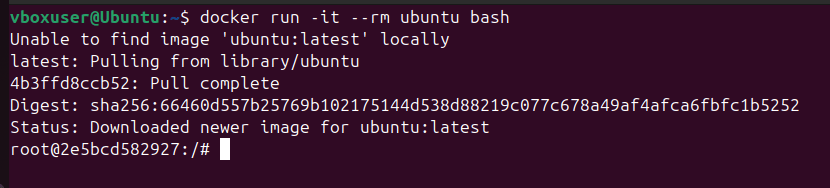
docker run -it --rm busybox bash          # Run interactively + auto-remove
docker ps
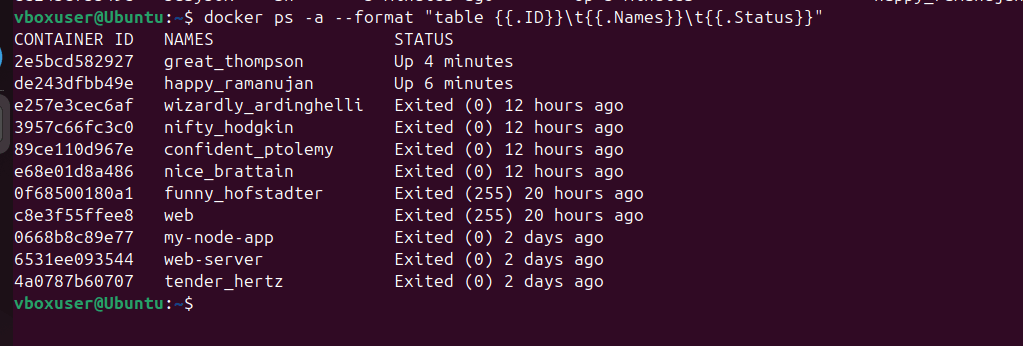
docker ps -a --format "table {{.ID}}\t{{.Names}}\t{{.Status}}"  # Custom format
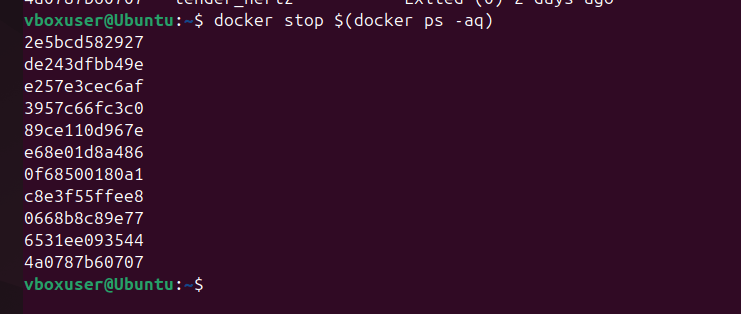
docker stop $(docker ps -aq)                   # Stop all containers
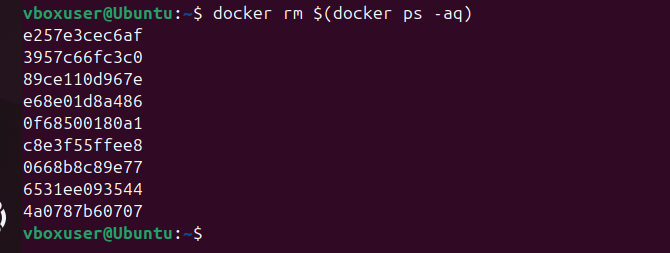
docker rm $(docker ps -aq)                     # Remove all containers
docker top <container_name>                    # View running processes



🔹 Working with Volumes – Try this steps only on Vagrant Ubunut Linux
cd /opt
mkdir data
cd data
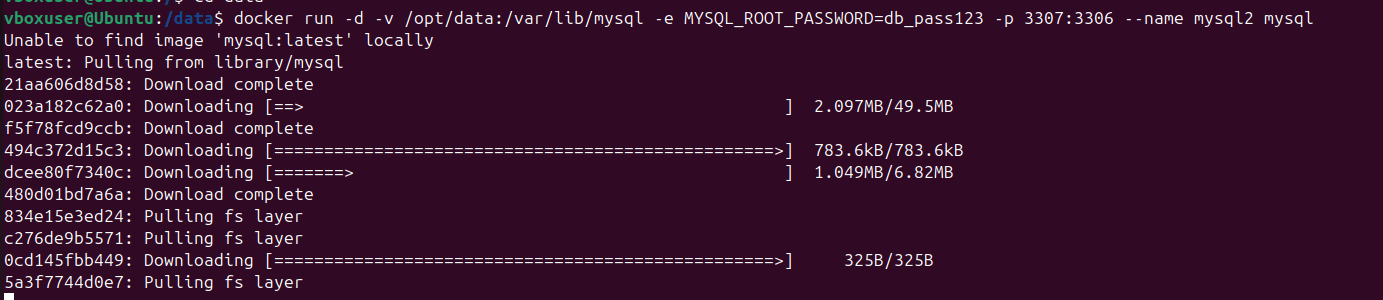
docker run -d -v /opt/data:/var/lib/mysql -e MYSQL_ROOT_PASSWORD=db_pass123 -p 3307:3306 --name mysql2 mysql
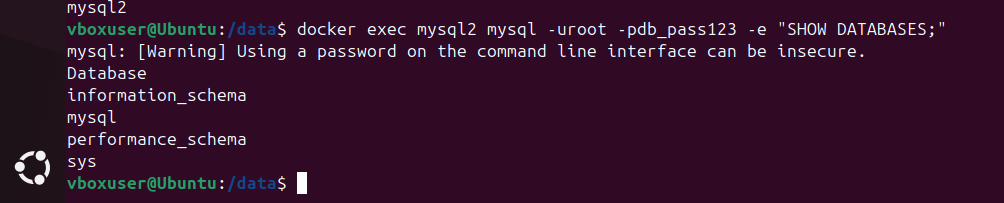
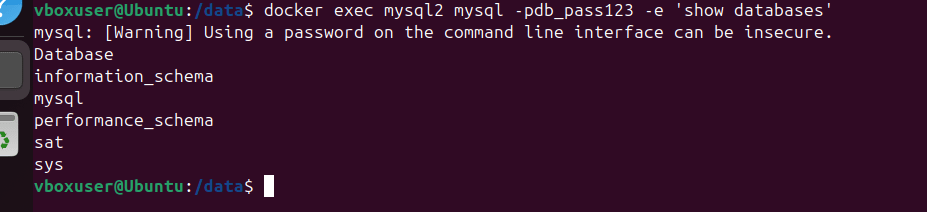
docker exec mysql2 mysql -pdb_pass123 -e 'show databases'
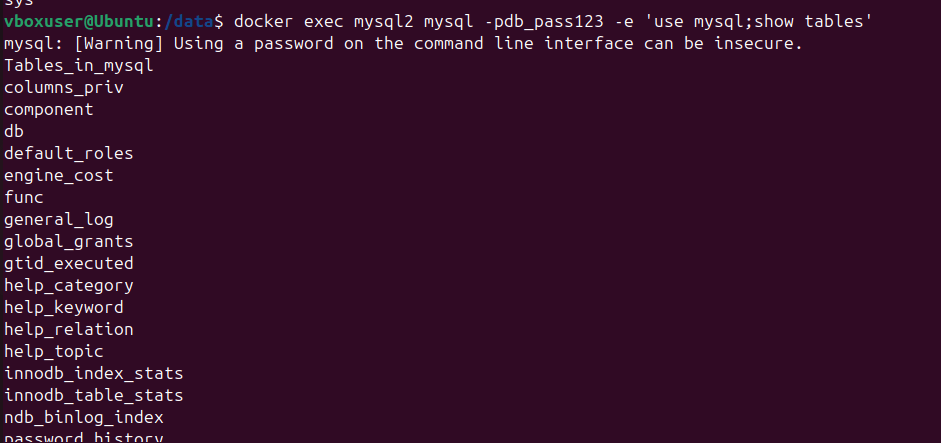
docker exec mysql2 mysql -pdb_pass123 -e 'use mysql;show tables'
docker exec mysql2 mysql -pdb_pass123 -e 'create database sat'
docker exec mysql2 mysql -pdb_pass123 -e 'show databases'
docker exec mysql2 mysql -pdb_pass123 -e 'use sat;show tables'
docker exec mysql2 mysql -pdb_pass123 -e 'use sat;create table student (name VARCHAR(30),age TINYINT,country TEXT)'
docker exec mysql2 mysql -pdb_pass123 -e 'use sat;describe student'
docker exec mysql2 mysql -pdb_pass123 -e 'use sat;insert into student(name,age,country) values ("satheya",44,"singapore")'
docker exec mysql2 mysql -pdb_pass123 -e 'use sat;insert into student(name,age,country) values ("satheyakumaar",44,"india")'
docker exec mysql2 mysql -pdb_pass123 -e 'use sat;select * from student'
docker stop mysql2
docker run -d -v /opt/data:/var/lib/mysql -e MYSQL_ROOT_PASSWORD=db_pass123 -p 3308:3306 --name mysql3 mysql
docker exec mysql3 mysql -pdb_pass123 -e 'use sat;select * from student'









Note
vagrant@devops-lab:~$ docker exec mysql2 mysql -pdb_pass123 -e ‘show databases’ mysql: [Warning] Using a password on the command line interface can be insecure. ERROR 2002 (HY000): Can’t connect to local MySQL server through socket ‘/var/run/mysqld/mysqld.sock’ (2)
Conclusion.
Learning Docker may feel overwhelming at first, but once you understand the fundamental commands, the entire container ecosystem becomes far more intuitive and approachable. These basic operations pulling images, running containers, inspecting activity, and cleaning up your environment form the core of everyday Docker usage and pave the way for deeper exploration. By mastering these essentials, you build the confidence needed to experiment with more advanced features like Dockerfiles, custom networks, volumes, and multi-service setups using Docker Compose. With a strong foundation in the most common commands, you’re now ready to continue your journey into modern, efficient, and portable application development using Docker.