Introduction
Introduction to Amazon Lambda refers to learning the basics of AWS Lambda, a serverless compute service that lets you run code without managing servers. It covers how to create Lambda functions, set triggers, manage permissions, and execute code in response to events like API calls, S3 uploads, or SQS messages.
Lab Steps
Step 1: Sign to the AWS Management Console
1. Click on the Open Console button, and you will get redirected to AWS Console in a new browser tab.
2. Copy your User Name and Password in the Lab Console to the IAM Username and Password in the AWS Console and click on the Sign in button.
3.Once Signed In to the AWS Management Console, Make the default AWS Region as US East (N. Virginia) us-east-1.
Step 2: Create Two Amazon S3 Buckets
In this task, we will create two S3 buckets — a source bucket and a destination bucket — by specifying basic settings such as the bucket name and region.
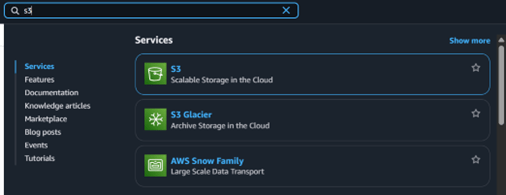
1. Go to the Services menu at the top and select S3 under the Storage category.
2. Click the Create bucket button.

3. Bucket Name: Enter mysourcebucket1234567.
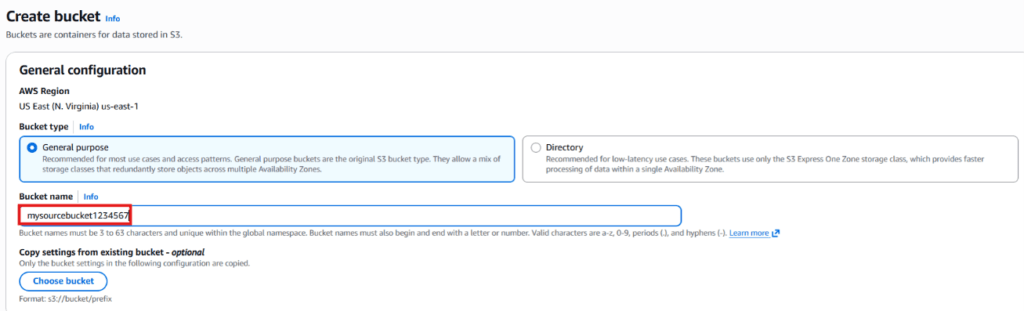
4. Keep all other options at their default values and click Create bucket.
5. Copy the bucket name and save it in a text file for future reference.
6. Now, create the Destination Bucket:
i) Click Create bucket again.
ii) Bucket Name: Enter mydestinationbucket1234567.
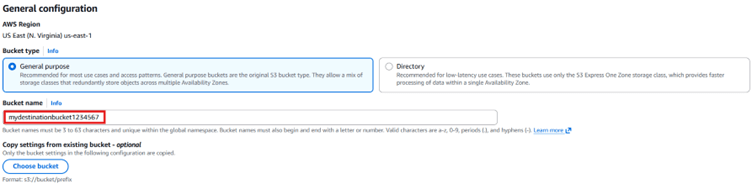
7. Leave all settings unchanged and click Create bucket.
8. Copy the destination bucket name and store it in a text file for later use.
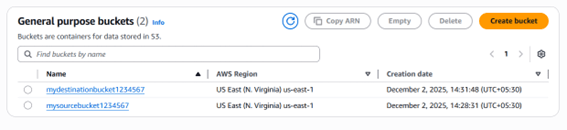
9. Now you have successfully created two S3 buckets (Source and Destination). These buckets will be used by your AWS Lambda function to copy objects from the source bucket to the destination bucket.
Step 3: Create a Lambda Function
1. Ensure that your AWS region is set to US East (N. Virginia).
2. Open the Services menu and select Lambda under the Compute category.
3. Click on Create function.
i) Choose the option Author from scratch.
ii) Function Name: Enter mylambdafunction.
iii) Runtime: Select Python 3.13.
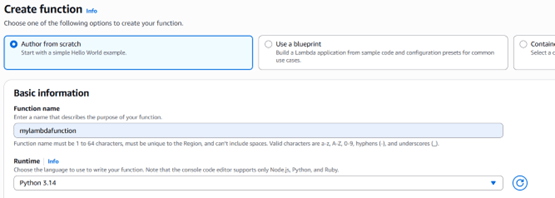
iv) Under the Permissions section, expand the settings by clicking Change default execution role, then choose Use an existing role.
v) From the dropdown, select the role named Lambda_role.
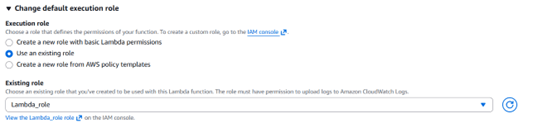
4. Click Create function to proceed.
5. Scroll down to locate the Code source section. This is where we will add Python code that copies an object from the source S3 bucket to the destination S3 bucket.
6. Delete the default code present in the lambda_function.py file. Then, paste the provided code snippet into the same file.
import boto3

def lambda_handler(event, context):
 s3 = boto3.client('s3')
 source_bucket = "Source_Bucket_name"
 destination_bucket = "Destination_Bucket_name"

 # Extract the object key from the event
 object_key = event['Records'][0]['s3']['object']['key']

 # URL encode the source object key
 copy_source = {
  'Bucket': source_bucket, 'Key': object_key}

 # Set up the parameters for the copy operation
 copy_params = {
  'Bucket': destination_bucket,
  'CopySource': copy_source,
  'Key': object_key
 }
 try:
   # Perform the copy operation
   result = s3.copy_object(**copy_params)
   print("S3 object copy successful. Response:", result)
 except Exception as e:
   print("Error copying object:", str(e))
7. Update the source and destination bucket names on lines 5 and 6 of the file using the names you saved earlier.
8. Click Deploy to save and apply the changes to your function.
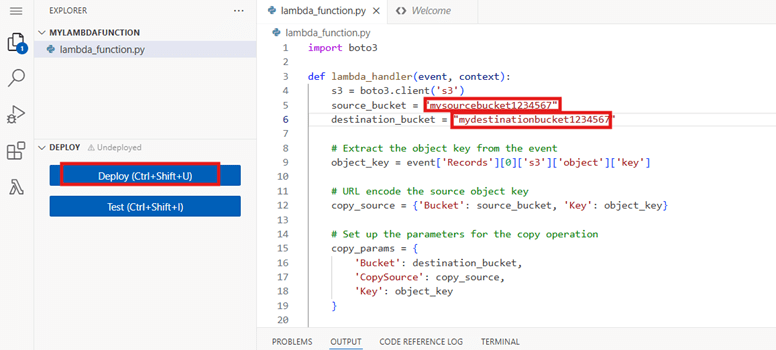
Step 4: Add a Trigger to the Lambda Function
1. Scroll back up to the Function overview section and click the + Add trigger button.
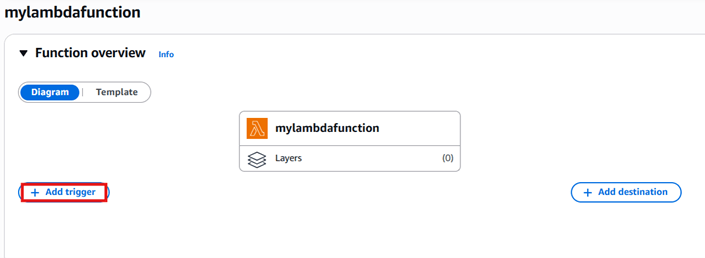
2. From the trigger list, scroll down and choose S3. After selecting S3, a configuration form will appear. Fill in the following details:
- Bucket: Choose your source bucket — mysourcebucket1234567
- Event type: Select All object create events
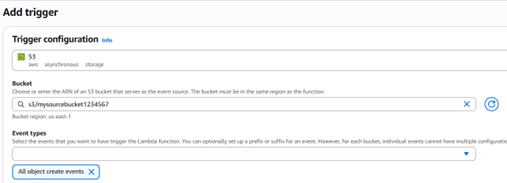
Keep all other settings unchanged.
Enable Recursive invocation by checking the acknowledgment box. This helps prevent errors when multiple files are uploaded at the same time

3. Click the Add button to save the trigger.
Step 5: Test Lambda function
1. If you have a test image on your local machine, you can use that image.
i) Click on Download to open the image in new tab, right click the image and save it to your local.
Note: Please name the image file as “image.jpeg” without using variations like “image (2).jpeg”.
2. Go to S3 Bucket list and click on source bucket – mysourcebucket1234567.
3. Upload image to source S3 bucket. To do that:
i) Click on the Upload button.
ii) Click on Add files button to add the files.
iii) Select the image and click on the Upload to upload the image.

4. Now go back to the S3 list and open your destination bucket – mydestinationbucket1234567.
5. You can see a copy of your uploaded source bucket image in the destination bucket.
Optional: Debugging Lambda Function Using CloudWatch
If you encounter errors such as the source file not being copied to the destination S3 bucket, please debug your Lambda function by following the steps mentioned below:
1. From the AWS Management Console, navigate to the CloudWatch service.
2. In the left sidebar, under the “Logs” menu, select “Log groups.
Optional: Debugging Lambda Function Using CloudWatch
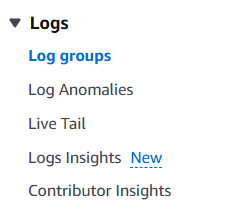
3. Open the log group for your Lambda function. It will appear in the format /aws/lambda/function-name.
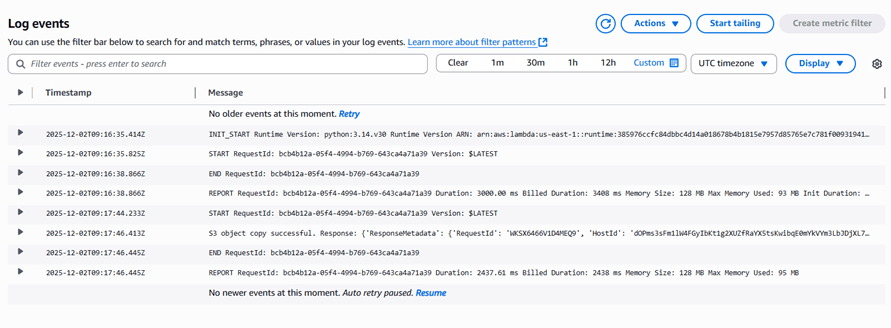
4. Select any log stream to view the generated logs.

5. In the Log events list, click the arrow icon next to the Timestamp to expand and view the detailed information for that event.
Conclusion
You successfully set up two S3 buckets to serve as the source and destination.
You created the required IAM policy and role for the Lambda function.
You successfully built an AWS Lambda function and attached an S3 trigger to it.
You verified the setup by triggering the Lambda function, which copied an image from the source bucket to the destination bucket.