
Git is one of those tools every developer knows they should learn but many only understand at a surface level. Knowing a few commands like git add, git commit, and git push is not enough when you start working on real-world projects with teams, deadlines, and production code.
In this guide, we’ll walk through how Git is actually used in real project environments step by step, with practical scenarios you’ll likely face as a developer.
Why Git Matters in Real Projects
In real development environments, Git is not just a version control system it’s the backbone of collaboration.
Here’s what Git enables in real projects:
- Multiple developers working on the same codebase simultaneously
- Tracking every change made to the project
- Reverting mistakes safely
- Managing releases and features efficiently
- Collaborating through structured workflows
Without Git, modern software development would be chaotic.
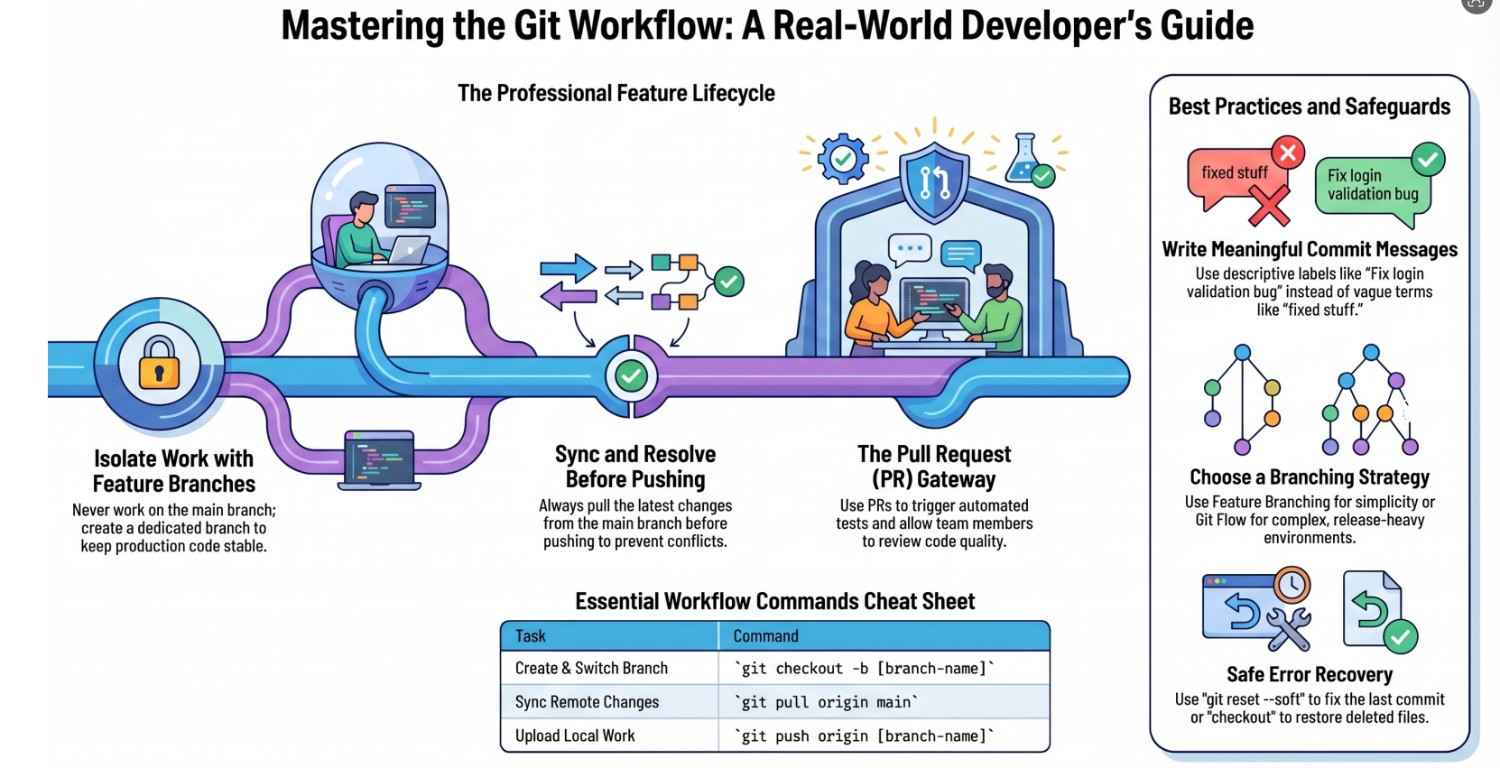
Typical Git Workflow in Real Projects
Let’s start with the most common workflow you’ll encounter in teams.
1. Cloning the Repository
When you join a project, the first step is to copy the codebase:
git clone cd project-folderThis gives you the full project history and files on your local machine.
2. Creating a New Branch (Very Important)
In real projects, you never work directly on the main branch.
Instead, you create a feature branch:
git checkout -b feature/login-pageThis isolates your work so it doesn’t affect the stable code.
3. Making Changes and Committing
After writing code:
git add . git commit -m “Add login page UI”Real Project Tip:
Write meaningful commit messages:
- ❌ “fixed stuff”
- ✅ “Fix login validation bug for empty password”
4. Syncing with the Latest Code
Before pushing, always pull the latest changes:
git pull origin mainThis prevents conflicts later.
5. Pushing Your Code
git push origin feature/login-pageNow your code is available to the team.
6. Creating a Pull Request (PR)
A Pull Request is how teams review code before merging.
In real projects, PRs:
- Allow code review
- Trigger automated tests
- Ensure quality control
7. Code Review and Merge
After approval, your code is merged into the main branch.
Branching Strategies Used in Real Teams
Different teams use different strategies depending on project size.
1. Feature Branch Workflow (Most Common)
- Each feature → separate branch
- Merged after completion
2. Git Flow (Structured Approach)
Branches include:
main→ productiondevelop→ active developmentfeature/*,release/*,hotfix/*
3. Trunk-Based Development
- Developers commit frequently to
main - Used in fast-moving teams
Real Scenario: Merge Conflicts
Merge conflicts happen when two developers modify the same file.
Example Conflict:
<<<<<<>>>>>> branch-nameHow to Resolve:
- Open the file
- Decide which code to keep
- Remove conflict markers
- Commit changes
Pro Tip:
Pull frequently to reduce conflicts.
Handling Common Real-World Situations
1. Accidentally Committed Wrong Code
Undo last commit:
git reset –soft HEAD~12. Need to Undo Changes Completely
git reset –hard HEADBe careful this deletes changes permanently.
3. Deleted a File by Mistake
git checkout — filename4. Want to See What Changed
git diff5. Check History
git log –onelineCollaboration in Teams
Git shines when working with others.
Best Practices:
- Pull before starting work
- Push regularly
- Use descriptive branch names
- Keep commits small and focused
Pull Requests: The Heart of Team Collaboration
A good PR includes:
- Clear title
- Description of changes
- Screenshots (if UI changes)
- Linked issue/task
Example:
Title: Add login feature
Description: Implements UI and validation for login form
Common Mistakes Developers Make
1. Working Directly on Main Branch
This can break production.
2. Large Commits
Hard to review and debug.
3. Ignoring Pull Before Push
Leads to conflicts.
4. Poor Commit Messages
Makes history useless.
Advanced Concepts in Real Projects
Git Rebase vs Merge
Merge:
- Keeps history intact
- Easier for beginners
Rebase:
- Cleaner history
- Rewrites commits
Example:
git rebase main
Git Hooks
Automate tasks like:
- Running tests before commit
- Enforcing code style
CI/CD Integration
In modern projects:
- Every push triggers builds
- Tests run automatically
- Code deploys after merge
Real Example: Feature Development Workflow
Let’s say you’re adding a signup feature:
- Create branch:
git checkout -b feature/signup - Write code and commit:
git commit -m "Add signup API" - Pull latest changes:
git pull origin main - Resolve conflicts if any
- Push:
git push origin feature/signup - Create PR
- Team reviews and merges
Best Practices for Real Projects
- Commit often, but meaningfully
- Always pull before pushing
- Use branches for everything
- Review code before merging
- Keep your repository clean
Final Thoughts
Learning Git commands is easy but mastering Git in real projects takes experience.
The key difference is:
- Theory: Commands
- Real world: Collaboration, discipline, workflow
Once you start thinking in terms of:
- branches
- commits
- collaboration
Git becomes not just a tool but a powerful system that helps teams build software efficiently.
Quick Cheat Sheet
| Task | Command |
|---|---|
| Clone repo | git clone |
| Create branch | git checkout -b branch-name |
| Add changes | git add . |
| Commit | git commit -m "message" |
| Pull changes | git pull |
| Push changes | git push |
| View history | git log --oneline |
If you consistently follow these practices, you’ll be able to work confidently in any real-world development team using Git.
Now the best way to learn? Start using Git in an actual project and experience these scenarios yourself.
- ·If you’re looking to build these features into your product, feel free to contact us.