
Introduction.
Amazon Elastic File System (EFS) is a scalable and fully managed network file system that allows multiple EC2 instances to access shared storage simultaneously. It is designed to provide elastic capacity, meaning it can automatically grow and shrink as you add or remove files, eliminating the need to provision storage in advance. Mounting EFS on EC2 enables instances to share data seamlessly, which is particularly useful for applications requiring distributed file storage, like web servers, content management systems, and big data processing. Unlike traditional storage solutions, EFS is fully managed by AWS, so you do not need to worry about hardware maintenance, patching, or scaling. The integration with EC2 ensures low-latency access within the same VPC, making it suitable for performance-sensitive workloads.
EFS supports the NFS protocol, specifically NFSv4.1, which allows EC2 instances running Linux to connect and interact with the file system efficiently. Security is a core consideration, and access is controlled through security groups and network ACLs, ensuring only authorized EC2 instances can communicate with the file system. The process of mounting EFS on EC2 involves creating the file system, configuring mount targets, setting up appropriate security groups, and then mounting the filesystem using NFS utilities. This workflow provides a standardized and repeatable approach for connecting EC2 instances to scalable shared storage.
One of the advantages of EFS is that it is highly available and durable, storing data redundantly across multiple Availability Zones within a region. This design reduces the risk of data loss due to hardware failures or isolated outages, providing a reliable storage backend for mission-critical applications. Additionally, EFS supports performance modes such as General Purpose and Max I/O, allowing users to optimize throughput and latency based on workload requirements. The flexibility of EFS makes it compatible with a wide variety of workloads, from small-scale development environments to large-scale enterprise applications.
Mounting EFS also simplifies application deployment because multiple EC2 instances can access the same file system without complex synchronization mechanisms. This eliminates the need for managing individual instance storage or replicating data across servers manually. It also supports automatic scaling, meaning as more data is stored, the system scales seamlessly without manual intervention. Administrators can create directories, set permissions, and manage files in a familiar Linux-like environment, which reduces operational complexity and improves efficiency.
Furthermore, EFS integrates with AWS Identity and Access Management (IAM) and supports encryption at rest and in transit, ensuring that data is secure both on disk and during network transmission. By following a step-by-step approach to mounting EFS on EC2, users can achieve a secure, scalable, and high-performance storage solution that enhances application reliability and availability. The process encourages best practices in cloud architecture, including security, availability, and performance optimization. Overall, mounting EFS on EC2 empowers organizations to leverage managed storage that is elastic, durable, and accessible across multiple instances, enabling collaborative and distributed workloads with minimal administrative overhead.
1. Create an EFS File System.
- Go to AWS Console → EFS (Elastic File System)
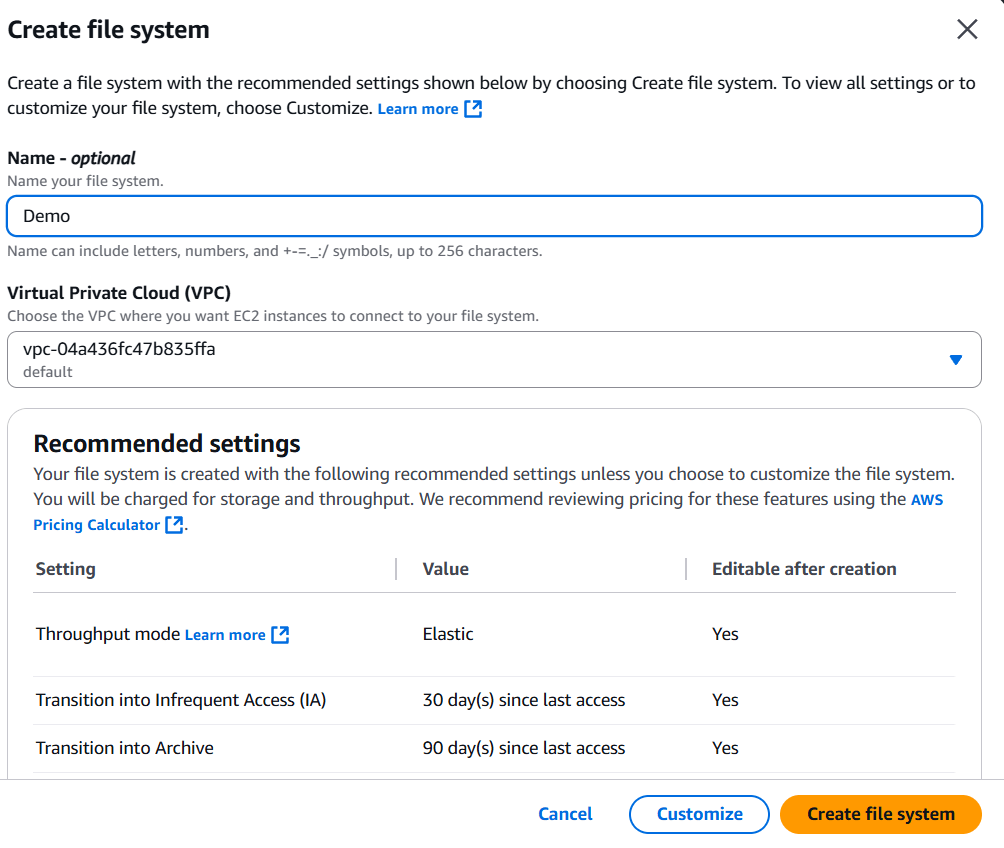
- Click Create file system
- Choose:
- VPC (must be same as your EC2 instance)
- Ensure mount targets exist in each Availability Zone where EC2 may run
- Keep defaults and click Create


2. Configure Security Group Rules.
To allow EC2 to mount EFS:
On the EFS Security Group
Add an Inbound rule:
- Type: NFS
- Port: 2049
- Source: EC2 security group (NOT 0.0.0.0/0)
On the EC2 Security Group
No change needed unless outbound is restricted; outbound must allow port 2049 to EFS SG.


3. Install NFS Utilities on the EC2 Instance.
For Amazon Linux 2 / Amazon Linux 2023
sudo yum install -y nfs-utilsFor Ubuntu
sudo apt update sudo apt install -y nfs-common
4. Create a Mount Directory.
sudo mkdir -p /mnt/efs5. Mount the EFS File System.
You can find your EFS DNS name in the EFS console.
Format:
file-system-id.efs.region.amazonaws.com
Example:
sudo mount -t nfs4 -o nfsvers=4.1 fs-12345678.efs.us-east-1.amazonaws.com:/ /mnt/efs6. Test the Mount.
df -h | grep efsWrite a test file:
sudo touch /mnt/efs/test.txt ls -l /mnt/efs7. Make the Mount Persistent (Optional but Recommended).
Open /etc/fstab:
Add this line (modify with your FS ID and region):
fs-12345678.efs.us-east-1.amazonaws.com:/ /mnt/efs nfs4 defaults,_netdev 0 0Test:
sudo mount -aIf no errors → success.
You’re Done!
Your EC2 instance is now successfully mounting EFS.
Conclusion.
In conclusion, mounting Amazon EFS on an EC2 instance provides a scalable, highly available, and fully managed storage solution that enhances the flexibility and efficiency of cloud-based applications. By following the step-by-step process of creating the file system, configuring security groups, installing NFS utilities, and mounting the filesystem, users can seamlessly enable multiple EC2 instances to share data in real time. EFS eliminates the complexities of managing traditional storage, offering automatic scaling, durability across multiple Availability Zones, and integration with AWS security features such as IAM and encryption. This setup not only simplifies application deployment and management but also ensures reliable performance for a wide range of workloads. Ultimately, leveraging EFS with EC2 empowers organizations to build resilient, collaborative, and scalable systems while minimizing administrative overhead and maximizing operational efficiency.
- For more information about AWS EFS, you can refer to Jeevi’s page.