Git is one of the most widely used version control systems in modern software development, yet many developers interact with it only through a handful of commands git add, git commit, git push, and git pull. While these commands are powerful, they only scratch the surface of what Git is actually doing under the hood.
In this deep dive, we’ll explore Git’s architecture and uncover how it manages data, tracks changes, and enables distributed collaboration. By the end of this article, you’ll have a mental model of Git that goes far beyond everyday usage helping you debug issues, optimize workflows, and truly master version control.
1. Git Is a Content-Addressable Filesystem
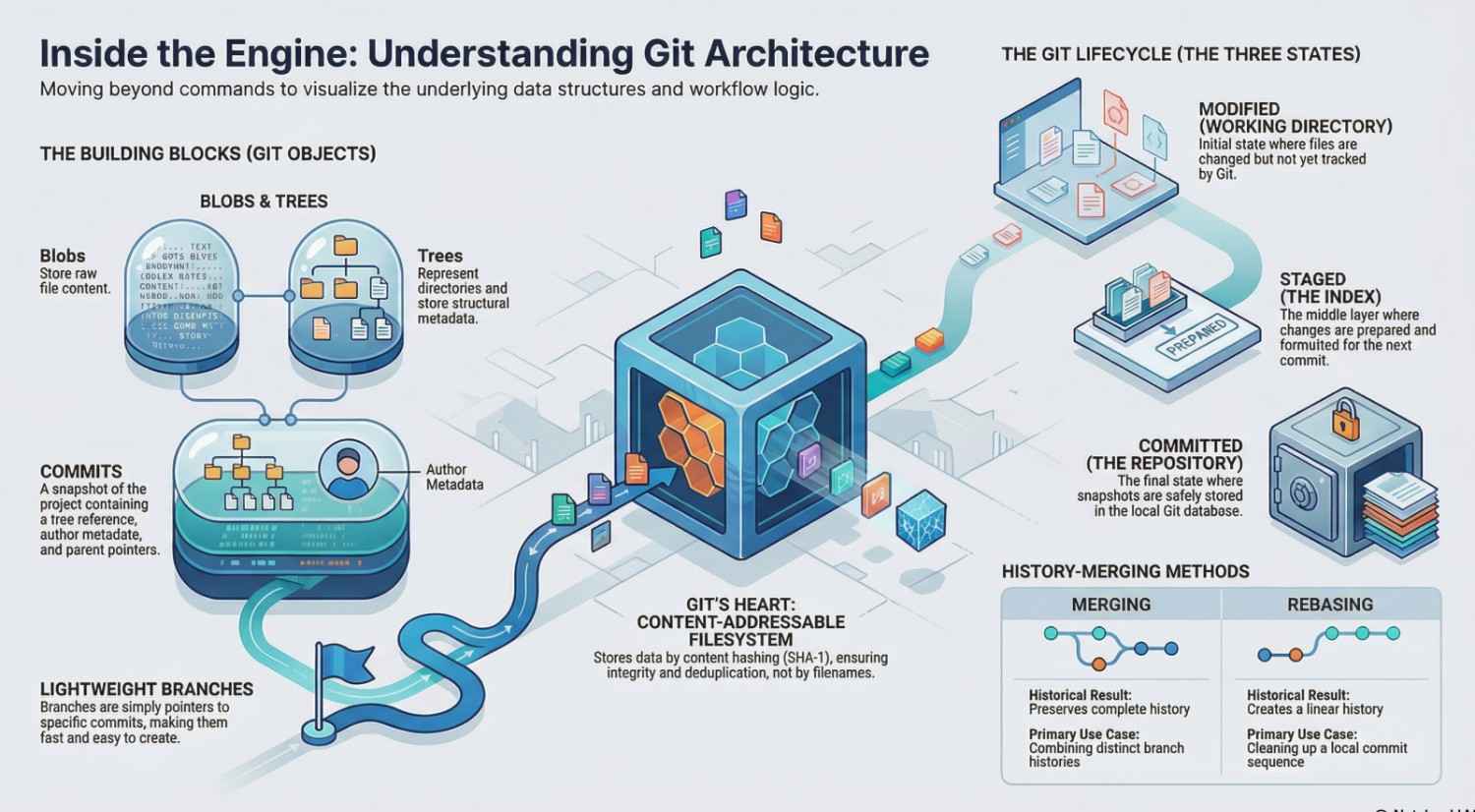
At its core, Git is not just a version control system it’s a content-addressable filesystem.
What does that mean?
Instead of storing files based on filenames or locations, Git stores data based on the content itself. Every piece of data in Git is identified by a SHA-1 hash (or SHA-256 in newer versions).
For example:
- When you commit a file, Git calculates a hash of its contents.
- That hash becomes the unique identifier for that object.
This design provides:
- Integrity: If content changes, the hash changes.
- Deduplication: Identical content is stored only once.
- Immutability: Objects cannot be altered without changing their identity.
2. The .git Directory: Git’s Brain
Every Git repository contains a hidden .git directory. This is where everything lives.
Inside .git, you’ll find:
objects/→ Stores all Git objects (blobs, trees, commits)refs/→ Stores pointers to commits (branches, tags)HEAD→ Points to the current branchindex→ The staging areaconfig→ Repository configuration
Think of .git as a database that tracks every change ever made.
3. Git Objects: The Building Blocks
Git stores data as objects. There are four main types:
3.1 Blob (Binary Large Object)
- Represents file content.
- Does NOT store filenames or metadata.
- Just raw data.
3.2 Tree
- Represents a directory.
- Contains references to blobs and other trees.
- Stores filenames and structure.
3.3 Commit
- Represents a snapshot of your project.
- Points to a tree (project state).
- Includes metadata:
- Author
- Committer
- Timestamp
- Commit message
- Parent commits
3.4 Tag
- A named reference to a specific commit.
- Often used for releases (e.g., v1.0).
4. The Staging Area (Index)
The staging area is one of Git’s most misunderstood features.
It acts as a middle layer between your working directory and the repository.
Workflow:
- Modify files in working directory
- Add changes using
git add - Changes move to the staging area
- Commit using
git commit
Why is this useful?
It allows:
- Partial commits
- Better control over what goes into a commit
- Cleaner commit history
5. The Three States of Git
Files in Git exist in three main states:
- Modified → File has been changed but not staged
- Staged → File is ready to be committed
- Committed → File is safely stored in Git
This lifecycle is fundamental to understanding Git workflows.
6. Branches Are Just Pointers
One of Git’s most powerful features is branching but internally, branches are surprisingly simple.
A branch is just:
A pointer to a specific commit
For example:
main→ points to commit Afeature→ points to commit B
When you create a new commit:
- The branch pointer moves forward
This makes branching:
- Lightweight
- Fast
- Easy to create and delete
7. HEAD: Your Current Position
HEAD is a special pointer that tells Git where you are.
Usually:
HEAD→ points to a branch → which points to a commit
But in a detached HEAD state:
HEADpoints directly to a commit
This happens when:
git checkout <commit-hash>Understanding HEAD is crucial when debugging Git issues.
8. How Commits Form a Graph
Git does not store history as a simple list it uses a Directed Acyclic Graph (DAG).
Each commit:
- Points to one or more parent commits
This enables:
- Branching
- Merging
- Parallel development
Example:
A → B → C
     \
      D → E
Here:
CandEshare a common ancestorB
9. Merging and Rebasing
Merging
- Combines histories from different branches
- Creates a new commit with multiple parents
Rebasing
- Rewrites history
- Moves commits to a new base
Key difference:
- Merge preserves history
- Rebase creates a cleaner, linear history
10. Git’s Storage Optimization
Git is incredibly efficient thanks to:
Compression
- Objects are compressed using zlib
Packfiles
- Git groups objects into packfiles
- Reduces disk usage and improves performance
Delta Encoding
- Stores only differences between file versions
11. Distributed Architecture
Unlike centralized systems, Git is distributed.
Every developer has:
- Full repository history
- Complete object database
This enables:
- Offline work
- Faster operations
- Redundancy and backup
12. Remote Repositories
Remote repositories (like GitHub, GitLab, Bitbucket) are just copies of your repo.
Commands:
git push→ Send changes to remotegit pull→ Fetch + mergegit fetch→ Download without merging
Important:
Git itself does NOT depend on any server.
13. Git Workflow Internals
Let’s trace a typical workflow:
Step 1: Modify File
- File changes in working directory
Step 2: Stage File
git add file.txt- Creates a blob object
- Updates index
Step 3: Commit
git commit -m "Update file"- Creates tree object
- Creates commit object
- Updates branch pointer
14. Garbage Collection
Git periodically cleans up unnecessary data:
git gcRemoves:
- Unreachable objects
- Duplicate data
This keeps repositories efficient.
15. Why Understanding Git Architecture Matters
Knowing Git internals helps you:
- Debug issues like merge conflicts
- Recover lost commits
- Use advanced features confidently
- Optimize large repositories
- Understand performance bottlenecks
16. Common Misconceptions
“Git stores diffs”
Not exactly.
- Git stores full snapshots
- Uses compression to simulate diffs
“Branches are heavy”
No.
- They are lightweight pointers
“Deleting a branch deletes data”
Not immediately.
- Data remains until garbage collection
17. Visualizing Git Internals
Think of Git as:
- A database of objects
- A graph of commits
- A set of pointers (branches, HEAD)
Everything you do in Git:
- Creates or moves pointers
- Adds new objects
- Connects history
Conclusion
Git’s architecture is elegant, powerful, and surprisingly simple once you break it down.
By understanding:
- Objects (blobs, trees, commits)
- The staging area
- Branch pointers
- The commit graph
You move from using Git to understanding Git.
And that’s the difference between:
- Memorizing commands
and - Mastering version control
Final Thought
Next time you run a Git command, remember:
You’re not just saving code you’re shaping a graph of history.
Once you internalize this model, Git stops being confusing and starts becoming predictable.
- If you want to explore DevOps, click here.