Hybrid cloud architecture has become a practical approach for organizations that want to combine the scalability of the cloud with the control of on-premise infrastructure. By integrating Amazon EC2 with your on-premise data center, you can extend workloads, improve disaster recovery, and optimize costs without fully migrating everything to the cloud.
This guide walks you through setting up a secure and functional hybrid connection between your local data center and Amazon Web Services.
What Is a Hybrid Cloud Setup?
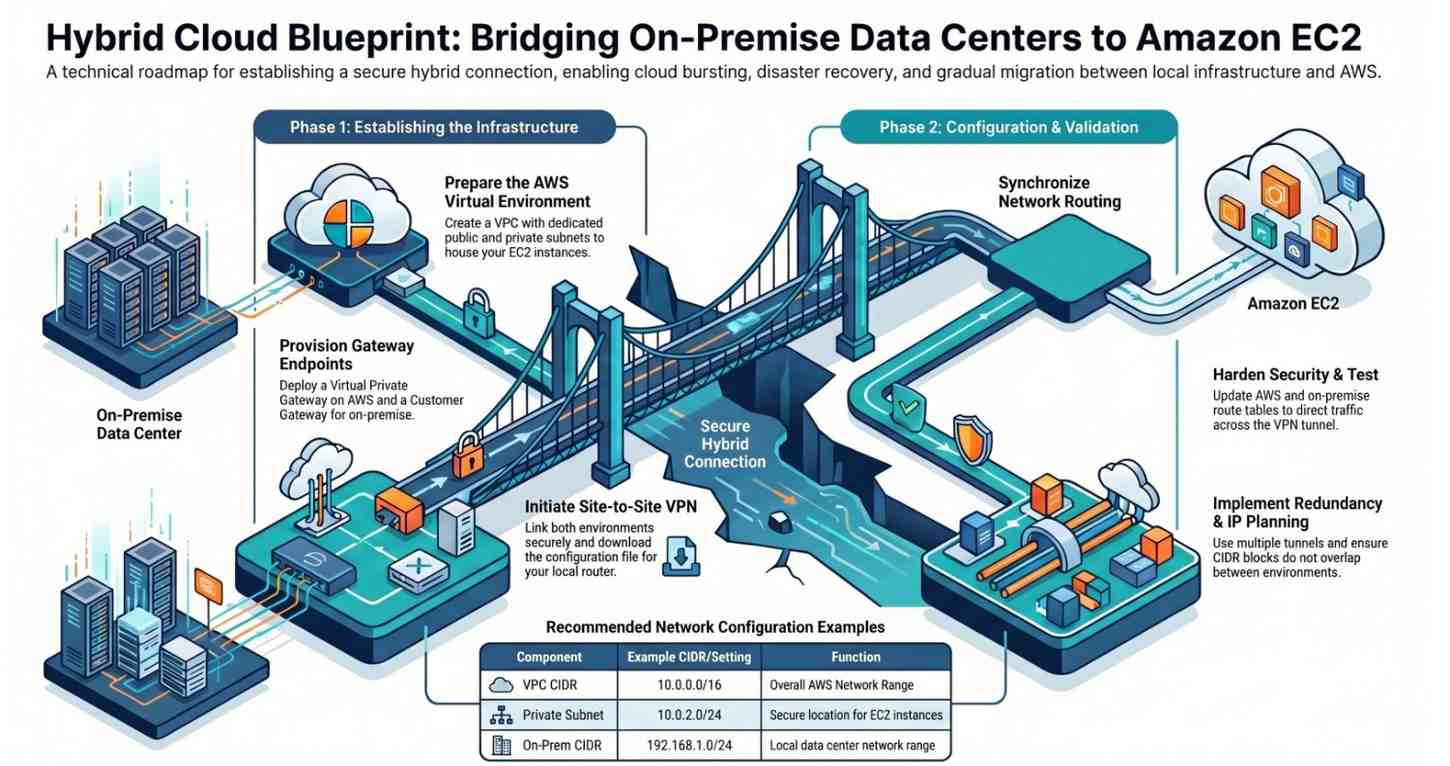
A hybrid cloud setup connects your on-premise infrastructure (physical servers, storage, networking) with cloud resources like EC2. This allows workloads to move between environments or operate simultaneously.
Common use cases include:
- Backup and disaster recovery
- Cloud bursting during peak demand
- Gradual cloud migration
- Data processing and analytics
Architecture Overview
Before jumping into configuration, understand the core components involved:
- On-Premise Data Center – Your internal servers and network
- Virtual Private Cloud (VPC) – Your isolated AWS network
- EC2 Instances – Cloud-based virtual machines
- VPN or Direct Connect – Secure communication channel
- Internet Gateway / NAT Gateway – For internet access
Prerequisites
Make sure you have the following:
- An active AWS account
- Basic understanding of networking (IP, subnets, routing)
- Access to your on-premise firewall/router
- Static public IP for your data center (recommended)
Step 1: Create a Virtual Private Cloud (VPC)
Start by creating a VPC in AWS.
- Go to the AWS Management Console
- Navigate to VPC Dashboard
- Click Create VPC
- Define:
- CIDR block (e.g., 10.0.0.0/16)
- Name your VPC
This VPC will act as the cloud-side network of your hybrid setup.
Step 2: Create Subnets
Subnets divide your VPC into smaller networks.
- Create at least:
- Public subnet (for internet-facing resources)
- Private subnet (for EC2 instances)
Example:
- Public subnet: 10.0.1.0/24
- Private subnet: 10.0.2.0/24
Step 3: Launch an EC2 Instance
Now deploy your compute resource.
- Go to EC2 Dashboard
- Click Launch Instance
- Choose:
- OS (Amazon Linux or Ubuntu)
- Instance type (e.g., t2.micro for testing)
- Select your VPC and subnet
- Configure security group:
- Allow SSH (port 22)
- Allow ICMP (for testing connectivity)
Once launched, note the private IP address.
Step 4: Set Up a Virtual Private Gateway
To connect your data center, AWS needs a gateway.
- Go to VPC → Virtual Private Gateways
- Create a new gateway
- Attach it to your VPC
This acts as the AWS endpoint for your hybrid connection.
Step 5: Configure Customer Gateway
Now define your on-premise side.
- Go to Customer Gateways
- Create a new one
- Enter:
- Your data center’s public IP
- Routing type (Static or Dynamic with BGP)
Step 6: Create a Site-to-Site VPN Connection
This step connects both environments securely.
- Navigate to VPN Connections
- Create new connection
- Select:
- Virtual Private Gateway
- Customer Gateway
- Choose routing:
- Static (simpler)
- Dynamic (scalable using BGP)
After creation, download the configuration file. It contains settings for your router/firewall.
Step 7: Configure On-Premise Firewall/Router
Use the downloaded VPN configuration file to set up your on-premise device.
Typical configuration includes:
- IPSec tunnel setup
- Encryption settings
- Pre-shared key
- Routing rules
Each vendor (Cisco, Fortinet, etc.) has slightly different steps, but AWS provides templates.
Step 8: Update Route Tables
Routing ensures traffic flows correctly between environments.
In AWS:
- Go to Route Tables
- Add route:
- Destination: On-prem CIDR (e.g., 192.168.1.0/24)
- Target: Virtual Private Gateway
On-Premise:
- Add route to AWS CIDR (e.g., 10.0.0.0/16) via VPN
Step 9: Configure Security Groups and Network ACLs
Security is critical in hybrid setups.
Update EC2 security groups:
- Allow inbound traffic from on-prem network
- Restrict unnecessary ports
Example:
- Allow SSH from 192.168.1.0/24
- Allow application-specific ports
Step 10: Test Connectivity
Now verify everything works.
From on-prem server:
- Ping EC2 private IP
- SSH into EC2 instance
From EC2:
- Ping on-prem server
If successful, your hybrid connection is live.
Optional: Use AWS Direct Connect
For production environments requiring high bandwidth and low latency, consider AWS Direct Connect instead of VPN.
Benefits:
- More stable connection
- Lower latency
- Consistent performance
Monitoring and Logging
Once your setup is live, monitoring is essential.
Use Amazon CloudWatch to:
- Track EC2 performance
- Monitor network traffic
- Set alerts for downtime
You can also enable VPC Flow Logs for deeper network insights.
Best Practices
1. Use Private IP Communication
Avoid routing sensitive data over public internet.
2. Implement Redundancy
Set up multiple VPN tunnels or backup connections.
3. Secure Access
- Use IAM roles
- Avoid hardcoded credentials
4. Optimize Costs
- Stop unused EC2 instances
- Use right-sized instances
5. Plan IP Addressing Carefully
Avoid overlapping CIDR blocks between AWS and on-prem.
Common Challenges
Network Conflicts
Overlapping IP ranges can break connectivity.
Firewall Restrictions
Blocked ports can prevent communication.
Latency Issues
VPN connections may introduce delay.
Misconfigured Routes
Incorrect routing tables are a frequent issue.
Real-World Use Case
Imagine a company running a legacy application in its data center. During peak usage, it launches additional EC2 instances to handle load. The application database remains on-prem, while compute scales in AWS.
This setup:
- Reduces hardware costs
- Improves scalability
- Enables gradual cloud adoption
Conclusion
Integrating Amazon EC2 with your on-premise data center is a powerful way to build a hybrid cloud architecture. While the setup involves multiple steps networking, security, and routing the benefits in scalability, flexibility, and resilience are significant.
By following this guide, you now have a working foundation for hybrid cloud deployment using Amazon Web Services. From here, you can expand into automation, containerization, and advanced networking to further enhance your infrastructure.
- If you want to explore AWS, click here to get started.